📁
Your Folder Is the Library
Open any folder with Open Workspace… (⌘O), or drop it on the Dock icon. Every Markdown file in it is a note, and the folders are your folders.
Notes are saved as plain .md files as you type. Tags, icons and the dates a note was created and last changed live in the note itself, so nothing is locked inside the app.
📱
On Your iPhone and iPad
Take the same folder along: FolderMarkdown for iPhone and iPad opens it from iCloud Drive, with the Mac's order, pinned notes, tags, icons, calendar and archive.
Notes are styled as you type, with images, PDF pages and sketches shown right in the editor (their Markdown and long link addresses stay out of the way until you tap them), and the bar above the keyboard adds bold, headings, lists, links, highlights, tables, callouts, photos and sketches you draw with your finger or Apple Pencil (and can edit again later). Tick tasks and resize images in the preview, drop or paste files, follow [[wiki links]], search every note and the PDFs and images in them, with your tags suggested, replace words in all of them, see backlinks, start from a template or today's note, and get earlier text back. The preview shows embedded notes, math and diagrams too.
On the iPad your notes list and the note sit side by side, and with a keyboard the Mac's shortcuts work. Share text or a web page from any app to make a note.
🗂️
A Sidebar That Stays Put
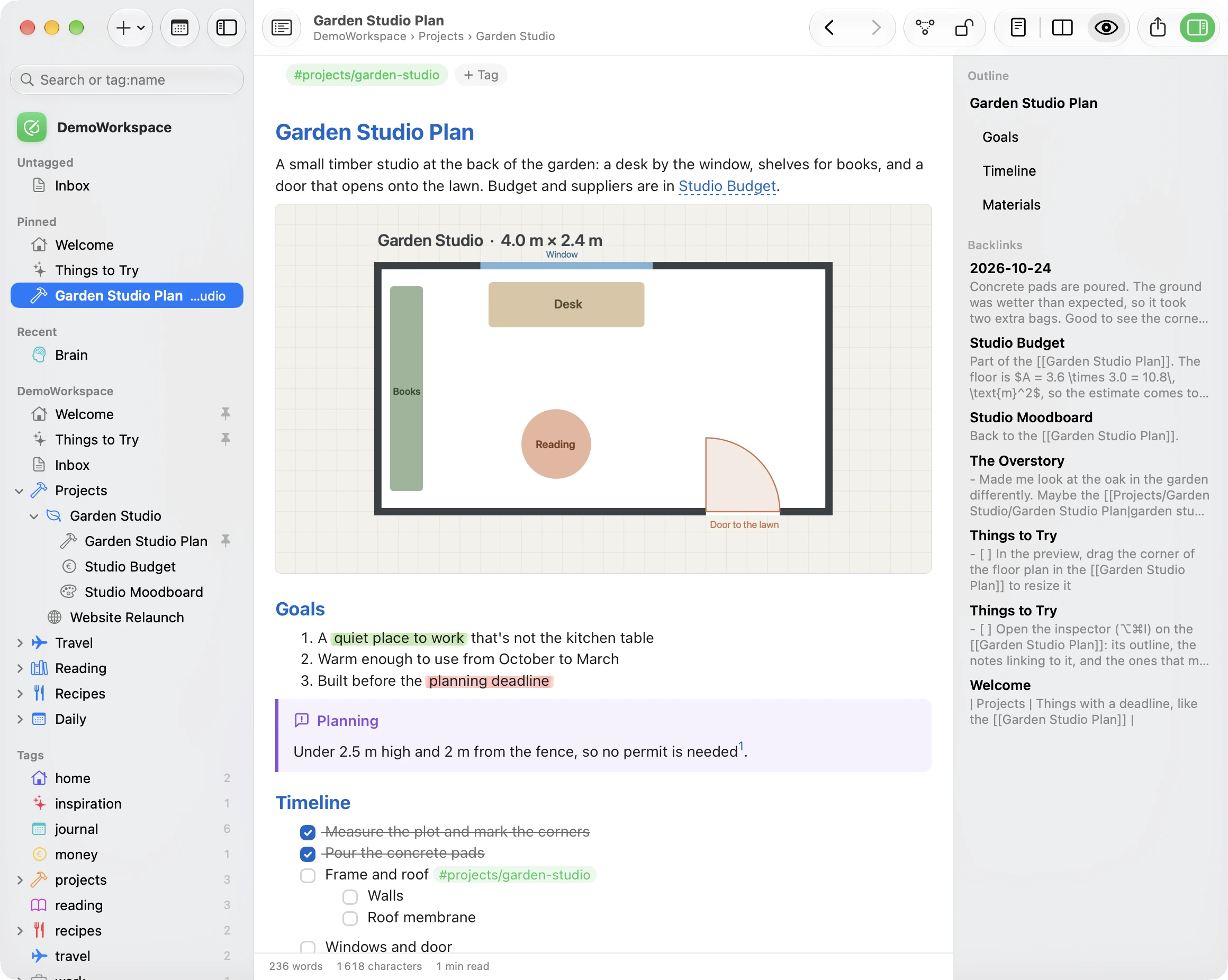
Drag notes and folders into the order you want, or sort by name or date modified. Drag them into other folders (a note takes its images and files along), drop notes and folders from Finder to copy them in, and rename right in the list with Return. To delete a note or folder, press ⌘⌫ or drag it onto the Trash in the Dock or in Finder.
The order is saved inside the folder, so it travels along to your other Macs. Give a folder its own icon, from any SF Symbol. If you like a tidy list, let opening a folder close the others (Settings ▸ Appearance).
📌
Pinned Notes and Folders
Pin the notes you use every day and they appear in a Pinned section above your folders, with a small pin after their name.
Right-click a note and choose Pin, or drag it onto the Pinned section. Drag pinned notes to reorder them, and press ⌘⌫ on one to unpin it.
Pin folders the same way: a pinned folder is selected right in the Pinned section, and a double-click finds it among your folders.
Pins follow a note when you rename or move it.
🗒️
A List of Your Notes
Turn on the note list (View ▸ Show Note List, ⌥⌘L) and it sits between the sidebar and the editor. Every note shows its title, first line, date and a thumbnail of its first image, and notes in subfolders show their folder.
Select a folder to list it with its subfolders, or click tags to list their notes. Drag its edge to make it wider.
🕘
Switch Workspaces
Keep a folder per project and switch between them with one click. The Recent group below Pinned lists the workspaces you opened before, most recent first. Choose how many it shows in Settings.
Switching saves your note and reopens the one you had open in the other workspace.
Open more windows or tabs with ⌥⌘N, each with its own workspace or the same one. Windows remember their workspace when you quit.
📅
A Calendar of Your Notes
A month calendar under the sidebar marks the days you created notes (blue) and edited them (orange). Click a day to see its notes, and click one to open it.
New notes get created: and modified: dates in their front matter, kept up to date as you write, so other apps can read them too. Drag the line above the calendar to resize it, or hide it with the calendar button in the sidebar's toolbar (⌥⌘K).
📝
Templates and Daily Notes
Keep the notes you start often as templates: File ▸ New Note from Template makes a note from one, with {{title}}, {{date}} and {{time}} filled in. Save Note as Template adds the open note, and File ▸ Templates… lists them all to edit, add or delete (on iPhone and iPad: Templates in the ••• menu). Templates are kept inside the workspace folder, so they travel along with it.
Today's Note (⌃⌘T) opens a note for today in the Daily folder, made from your template named Daily if you have one. In the calendar, the pencil next to a day does the same for that day.
🏷️
Tags in the Note Itself
Write #tags in the text, or click + Tag above the editor to add them to the note's tag bar, which stores them in the note's front matter. Right-click a tag in the tag bar, or click the pencil that appears when you point at it, to edit or remove it in that note only. Nest them with a slash, like #blog/reviews.
Click a tag in the sidebar to see its notes, and ⌘-click to combine tags. Give a tag a color and an icon, drop notes on it to tag them, and rename a tag to update every note at once.
Notes without any tag are listed in an Untagged section at the top of the sidebar, so none slip through.
🗄️
Archive and Lock
Archive a note with File ▸ Archive Note (⌃⌘A), the right-click menu, or by dragging it onto the Archive section. It leaves your folders, tags and Pinned and waits in a collapsed Archive section at the bottom of the sidebar.
The file moves into a hidden .archive folder in your workspace, at the same path and with its images, so deleting its old folder never takes it along. Links and images keep working, and Unarchive puts it back where it was. Search skips archived notes unless you add is:archived.
Lock a note (⌃⌘L) so it can't be changed by accident: it can still be read, and Unlock in the bar above it makes it editable again. Notes locked in Finder are shown read-only too.
🔐
Encrypted Notes
Protect a note with a password: File ▸ Encrypt Note… encrypts its text and its own images and files on disk, so Finder, Quick Look and other apps can't read them. Its name, tags and dates stay readable, so links, tags and the calendar keep working.
One password covers every encrypted note in the workspace, on your Mac, iPhone and iPad. When you choose it, you get a recovery key, the only way back if you forget the password.
Encrypted notes ask for the password in place of the editor, and lock again on request (⌃⌥⌘L), after a while without use, when your Mac sleeps or its screen locks, and when you leave the app on iPhone and iPad. Their text stays out of Spotlight and search in PDFs and images.
Each device can remember the password in its own keychain, so Touch ID, Face ID or your Mac's login password opens your encrypted notes instead.
✍️
Live Markdown Styling
Headings, bold, links, code, task lists and callouts are styled as you type, while the Markdown stays visible and plain. Headings get room above them, and images a faint edge. HTML tags are dimmed like the rest of the Markdown punctuation.
Long link addresses fold away: a link shows as [text] with a small arrow, and the full address comes back when you point at the link or your cursor is in it. Click the arrow to open it.
Images, PDF pages and sketches show without their  line. Point at one to see its Markdown in a small label, and click the label to edit it. Turn both off with View ▸ Hide Link and Image Markdown or in Settings.
The front matter at the top of a note is folded away, so the note starts with your text. Show it with the {} button in the tag bar or View ▸ Show Front Matter.
FolderMarkdown never turns -- into a dash or straight quotes into curly ones, so what you type is what is saved.
🎛️
Format Bar and Format Menu
Bold (⌘B), italic (⌘I), strikethrough (⇧⌘X), highlight (⇧⌘H), code, link (⌘K), footnote, headings (⌘1 to ⌘3), lists, quote, code block, table and callouts, from the format bar, the Format menu, or the Format menu you get by right-clicking in the editor. In the bar, headings, lists and blocks (quote, code block, table) each share one button with a menu, marked with a small arrow. When the window is narrow, the buttons that don't fit move into a » menu.
A new code block suggests a language, such as swift, javascript or bash, and so does typing ``` at the start of a line. The list narrows as you type.
Return continues a list and Tab nests an item. Brackets close themselves, and typing * or = with text selected wraps it. In a table, Tab moves to the next cell and the columns line up as you type.
Applying a style again removes it, and each change is one Undo.
Link uses a web address on the clipboard, and Table turns lines copied from a spreadsheet into a table.
✅
Fold Lists, Finish Tasks
Long lists stay readable: click the arrow in front of an item to hide its sub-items, in the editor or in the preview, and click it again to show them. Option-click folds everything under the item too, and the View menu folds the item at the cursor or every list in the note. FolderMarkdown remembers what you folded in each note, without changing the note.
Tick tasks in the editor or in the preview. When the last sub-task is done, the task above it is ticked too.
👁️
Live Preview
Show the editor, the preview, or both side by side (⌥⌘1, ⌥⌘2, ⌥⌘3), and switch instantly. Side by side, drag the line between them; it stays where you leave it. The preview follows your scrolling and renders GitHub Flavored Markdown: tables, task lists, footnotes, strikethrough and code with colors for common languages. #tags show as pills in their own color.
Pick a theme: Standard, GitHub, Book, Compact, Sepia, Academic, Typewriter, Modern, Solarized, Nord, Forest or Midnight. Side by side, Standard uses the same font, line height and line length as the editor, with the first lines at the same height and one word count under both.
📐
Math and Diagrams
Write TeX math between dollar signs, like $E = mc^2$, or as a block between $$, and draw flowcharts, sequence diagrams and more in a mermaid code block. The preview shows them as you type, and exports and print include them.
KaTeX and Mermaid come with the app, so nothing is loaded from the internet. Prices like $5 stay as you typed them.
🔗
Links Between Notes
Type [[ to link to another note, with suggestions as you type. Link to a heading with [[Note#Heading]], or change the text shown with [[Note|text]]. When notes share a name, the suggestions add the folder, as in [[Work/Meeting]].
⌘-click follows a link in the editor, and a link to a note that doesn't exist yet creates it. Rename a note and every link to it is updated. Write ![[Note]] to show another note inside this one in the preview and exports, or ![[photo.png]] for an image.
🖼️
Images and Files
Paste or drop an image or any other file, even a Pages document, a Mail attachment or a photo from Photos, or choose Format ▸ Image or File… (⇧⌘A). Format ▸ Photo from Photos… (⌥⇧⌘A) picks photos from your library. FolderMarkdown copies it into an assets folder next to the note and links it, so the folder stays complete. The assets folders stay out of the sidebar.
Right-click in a note and choose Insert from iPhone or iPad to add a sketch drawn on your iPhone or iPad, a photo from its camera, or scanned pages as a PDF.
Images and the first page of PDFs show in the editor too, right under the line that links them, at the width you gave them. You can turn this off in Settings.
Other files appear as a card, and PDFs show their first page. Drag the corner of an image or a PDF preview in the preview to resize it.
Move a note to another folder and its images and files go along, with its links still working.
🌐
Save Web Pages
File ▸ Import Web Page… (⇧⌘I) turns a web page into a note, named after the page and linked to it. Save it as Markdown, the page's article as text you can edit and search, with its images, as PDF, an exact copy in pages that shows in the note with its first page, or as Web Page, the complete page in one HTML file, shown in the note with a picture of it. Format ▸ Web Page… adds a page to the note you're writing.
Copy part of a page in Safari and paste it: headings, links, lists and images come along as Markdown.
💡
Callouts, Highlights and Footnotes
Callouts such as > [!TIP] show as colored boxes with their own icon. ==Highlighted text== gets a soft green background, or yellow, red, blue or purple as in Bear (Format ▸ Highlight Color), and the Footnote button adds the next number and its footnote at the end of the note.
🐻
At Home With Bear and Obsidian
Moving from Bear? Select a folder and choose File ▸ Import from Bear…. Each note lands in a folder named after its most specific tag, with its tags, dates, images and files, and Bear itself isn't changed.
Notes from Bear keep their attachments, image sizes and highlights. Obsidian's callout types are understood too, and [[wiki links]] work the same way.
🔍
Quick Open and Search
Press ⌘P and type part of a note's name to open it, with recent notes first. Search All Notes (⇧⌘F) looks for whole words, "exact phrases" and tags (tag:name or #name), and highlights the words in the note you open. It also looks inside the PDFs and images your notes link to, scans and photos included. Put a - in front to leave notes out: -draft, -"to do" or -#someday. Your tags are suggested as you type.
Replace in All Notes (⌥⇧⌘F) shows every note with a word or phrase and changes it in the notes you leave ticked, below the front matter only, keeping an earlier version of each.
🧭
Outline, Backlinks and History
The inspector (⌥⌘I) shows the headings of the open note, every note that links to it, and the notes that mention its name without a link: click Link to make one. View ▸ Broken Links lists the links that lead nowhere.
Go back and forward through the notes you opened with ⌘[ and ⌘], the toolbar arrows, the side buttons of your mouse, or a swipe.
The history is kept when you quit, as in a browser.
Right-click a note in the sidebar and choose Browse Versions to bring back earlier text.
🧩
At Home on Your Mac
Spotlight finds your notes by name, text and #tags, and opens them here. Press Space on a note in Finder and Quick Look shows it as the preview does. Share a note from the toolbar. Share text or a web page from any app to FolderMarkdown (as a link, its article or the whole page), or select text and choose Services ▸ New FolderMarkdown Note, and it becomes a note in the folder you have open.
Shortcuts can create a note, add a line to one or open one. File ▸ Browse Versions brings back earlier text, kept every ten minutes while you write.
🎯
Focus and Typewriter Mode
Focus mode (⌘D) dims everything but the paragraph you're writing. Typewriter mode (⇧⌘T) keeps the current line in the middle of the window.
The status bar counts words, characters and reading time, for the note or the selection.
⚙️
Make It Yours
Choose a system, serif or monospaced font, its size and line spacing, limit the line length for easier reading, and pick a light or dark appearance or follow the system.
A theme styles the whole app: the editor, the preview, the sidebar and the window, each theme with its own typeface and colors, light and dark. Choose from twelve, like Sepia, Nord, Forest or Midnight: on the Mac in Settings ▸ Appearance, on iPhone and iPad in a note's ••• menu. Standard keeps your own font settings.
Settings has a tab each for General, Editor and Appearance, so every option is easy to find.
FolderMarkdown speaks English, Dutch and French, following the language of your Mac, iPhone or iPad.
📤
Export and Print
Export a note as one HTML file with its images included, as a paged PDF or as a Word document (without images), and print it with ⇧⌘P. HTML, PDF and print use the theme you chose, with math and diagrams drawn in.
Copy as Rich Text (⌥⇧⌘C) puts the formatted note on the clipboard, ready to paste into an email.
🔄
Edit Anywhere
Change a note in another app, or let git or iCloud Drive update the folder, and FolderMarkdown picks up the change right away.
If a note changed on disk while you were editing it, a banner lets you keep your version or use the other one.
📖
Markdown Syntax at Hand
Help ▸ Markdown Syntax (⌘?) shows everything FolderMarkdown understands, with what you type next to how it looks and the keyboard shortcuts.
A short introduction walks you through the app the first time you open it. Read it again any time with Help ▸ Show Introduction.
⚡
Native Swift, Not Electron
Built with Swift and SwiftUI for macOS Tahoe: lightweight, fast and sandboxed, with updates from the App Store.